 XiaoZhuJian Docs
Translations: cards from text in other apps
With the XiaoZhuJian iOS app, text you select in another app, such as a line in Safari, a message or a page of a book, becomes a card without leaving that app. This page explains how those cards are made, which stack they are filed into, and how to choose a different one.
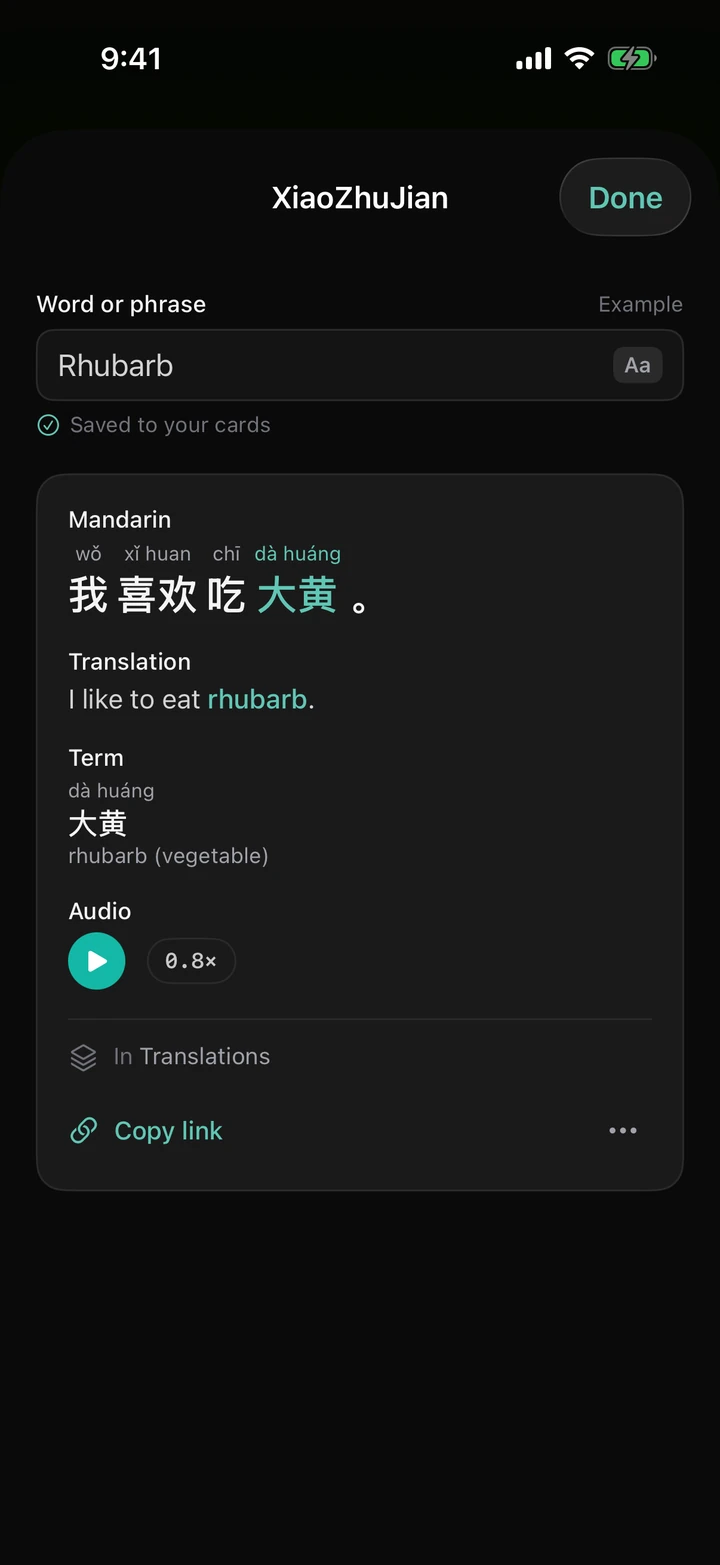
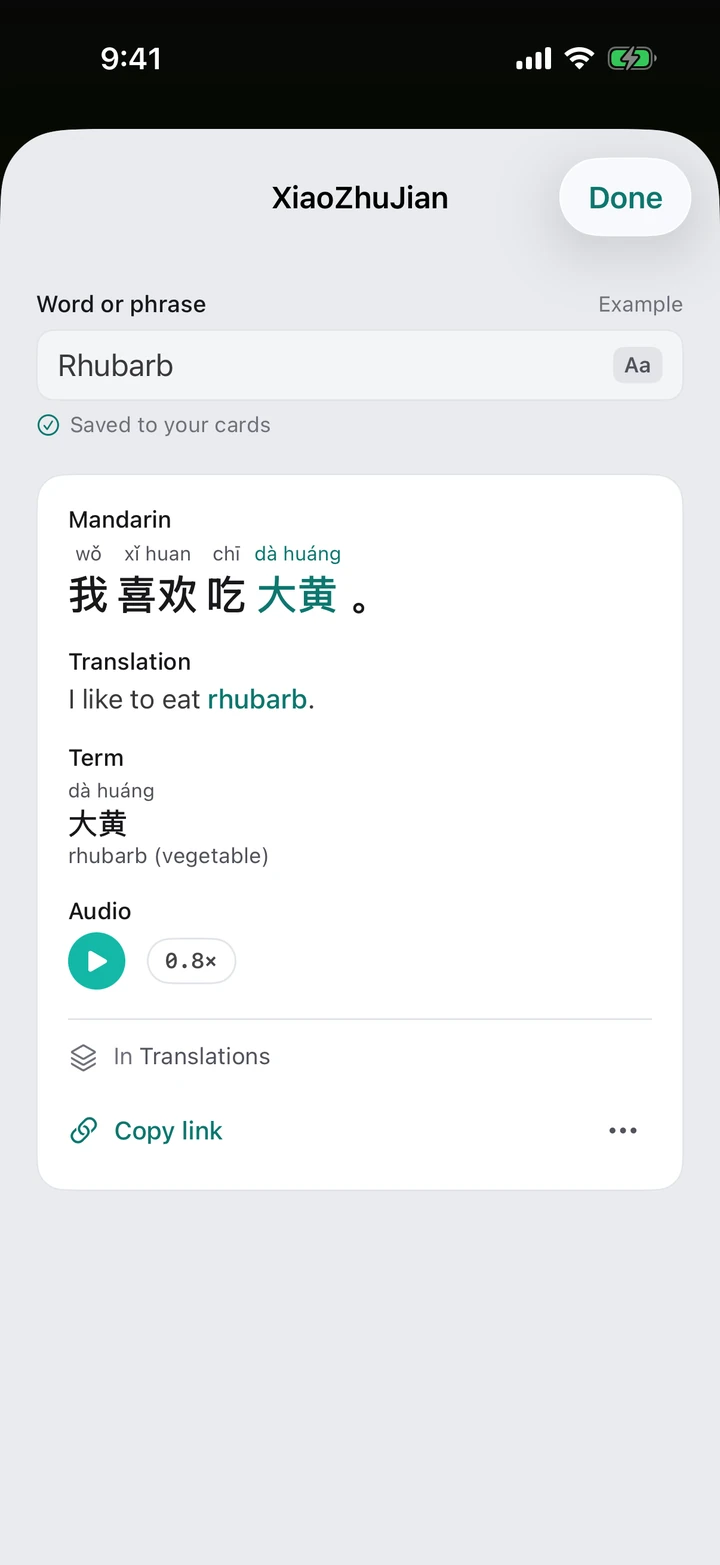
Making a card from selected text
There are two ways in, and both open the same card sheet:
- Translate. Select some text and tap Translate in the menu that appears. Once XiaoZhuJian is your iPhone's Translation app (set that up below), this opens XiaoZhuJian's card sheet in place of Apple's translation.
- Share. Select some text, tap Share, then XiaoZhuJian. This needs no setup.
The card starts the moment the sheet opens, and fills in as it is written: a Mandarin sentence with the reading over each word, a translation, the term and its audio. It is saved to your Cards like any card you make in the app, and counts toward your plan's card allowance the same way. If you opened the sheet by accident, Delete under the sheet's ⋮ removes the card again. Making cards this way is part of Premium and Max.
Where the cards go
Every card the sheet makes is also filed into one of your stacks, and the line under the card says which: “In Translations”. The first time, XiaoZhuJian makes a private stack called Translations for this. It is an ordinary stack that you can rename, review, add cards to, take cards out of and file in a folder. The one difference is that it cannot be deleted, so the sheet always has somewhere to file a card.
Choosing a different default stack
You can have the sheet file its cards into any stack you own:
- Open Stacks.
- Open the ⋮ menu on the stack you want, either on its row or on the stack's own page.
- Choose Default stack for translations, and confirm.
The stack then wears a Default for translations chip, on the list and on its page. To go back, choose Default stack for translations on the Translations stack. In the Translate sheet, Change beside the stack's name opens the Stacks page for the same choice.
What the choice changes
- Where new cards are filed. It applies from the next card the sheet makes. Cards already made stay in the stack they are in.
- What new cards are written with. A card filed into a stack is written with that stack's context, the Context for new cards you can set when you edit a stack. If the stack is for a trip to Chengdu and says so, a word you translate gets a sentence that fits the trip.
- Every device at once. The choice belongs to your account, not to a phone: choose it on a laptop and the sheet on your iPhone follows.
It changes nothing else. Cards you make on the New Card page go where its own Into stack picker says, and cards from an import, a generated stack or an AI assistant are unaffected. If you delete the stack you chose, the default goes back to Translations.
Setting up Translate on your iPhone
To have Translate open XiaoZhuJian, make it the device's Translation app, which needs iOS 18.4 or later:
- Open the iOS Settings app, then Apps, then Default Apps.
- Tap Translation.
- Choose XiaoZhuJian.
In the XiaoZhuJian app, Settings has a Translate menu row that opens the right page of iOS Settings for you. If you would rather keep Apple's translation, Share makes the same card from any app.